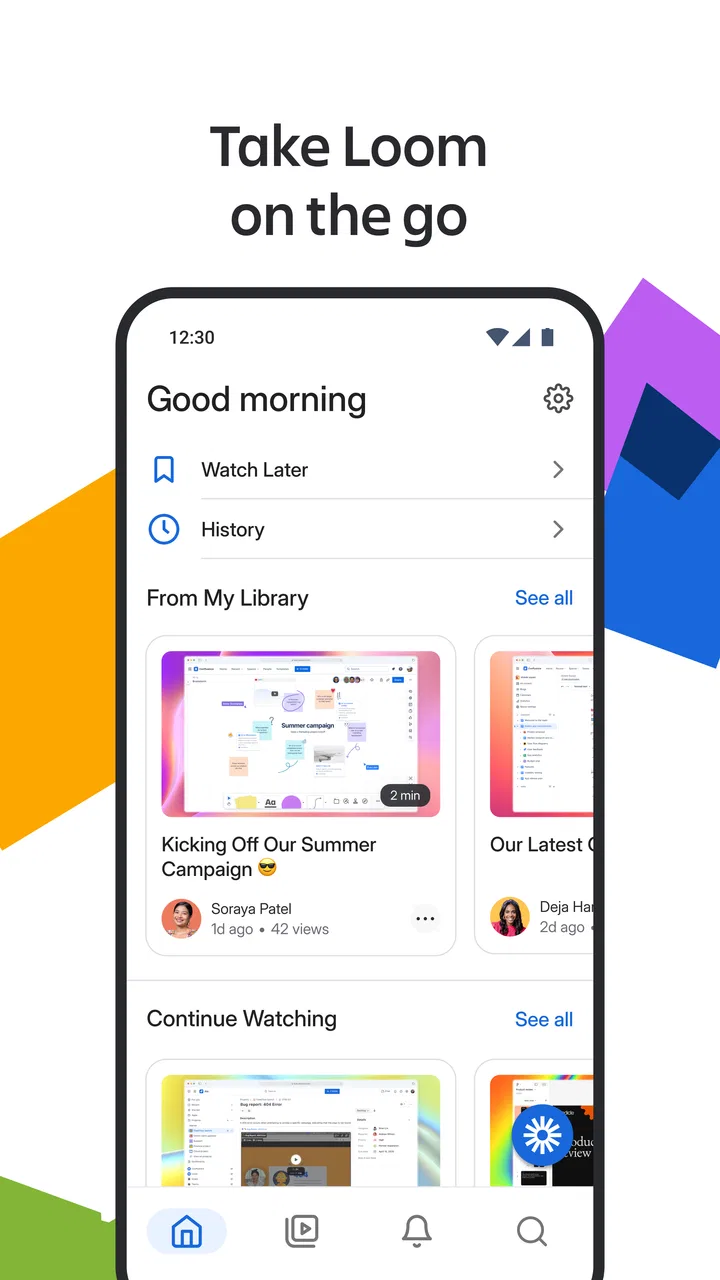
Loom – Screen and Cam Recorder
- 3.2
- Rating
- 1.00M
- Installs
- Free
- Price

 Analysis by App-foxy
When a quick explanation is easier to show than to type, Loom – Screen and Cam Recorder is the kind of business app I reach for first. I tested it as a mobile tool for capturing a screen, adding my face when useful, and sending a visual update to people who would otherwise need a long message or a meeting. Its strongest idea is simple: turn a moment on your phone into something a teammate can watch and understand.
The app comes from Loom, Inc and is available free of charge for everyone. It sits in the business category rather than trying to be a general-purpose video editor, and that distinction matters. I found it most useful for short explanations, status updates, demonstrations, and handoffs where clarity is more important than polished production.
From a work problem to a shareable explanation
My typical starting point was an unfinished task: a mobile screen showing an issue, a design that needed feedback, or a process I wanted to explain without arranging a call. Instead of switching between screenshots, typed instructions, and a separate recording tool, I opened Loom and treated the phone as the whole recording station.
You May Also Like

 Blood Strike: 2.5 Anniversary
Blood Strike’s Loadouts Turn Every Drop Into a Tactical Gamble
A close look at Blood Strike’s custom loadouts: how fast access to signature weapons reshapes its battle royale rhythm, rewards preparation, and narrows the gap between fights.

 Pandora - Music & Podcasts
Pandora’s Music Is Easy to Start, but Harder to Recover
Pandora’s strength is its low-effort path from a seed to a station. Its weak spot is how much confidence it asks you to place in connection, setup, and quiet recovery.

 8 Ball Pool
 Is Built on Rivalries, Rematches, and Routine
A close look at the rivalries, rematches, shared routines, and unanswered safety questions that turn a quick pool match into a persistent mobile community.

 Samsung Music
’s Quiet Strength Is Playing What You Already Own
Its reach comes less from spectacle than from dependable access to a personal library. That simplicity is both the app’s strongest retention engine and its ceiling.

 AccuWeather: Weather Radar
AccuWeather Review: A Quick, Clear Forecast for Everyday Decisions
For everyday plans, the best forecast is the one you can understand quickly. AccuWeather makes rain timing, radar, and local conditions easy to act on, with a few trade-offs.

 Hill Climb Racing
Why Hill Climb Racing Still Turns Crashes Into One More Run
A tiny car, a bumpy hill and one more upgrade: Hill Climb Racing keeps resurfacing because its simple chaos makes every near-miss feel personal.
More From Our News Desk



The first practical decision is whether the screen itself is enough or whether my camera adds useful context. For a bug report, a screen-only recording usually keeps attention on the problem. For a personal update to a colleague, including my face makes the message feel more direct. That choice is more important than it sounds because a small camera view can help establish who is speaking, while it can also distract from a detailed interface.
I also learned to prepare the destination before recording. A good mobile capture is not automatically a good handoff. I first opened the relevant app or document, moved to the exact screen I wanted to discuss, and decided on the one action the viewer should take afterward. This prevented the common mistake of recording a wandering tour with no clear outcome.
For a realistic example, imagine that I am reviewing a checkout screen on a phone and notice that a button is difficult to find. I can record the screen while showing the path to the problem, explain what I expected to happen, and finish by stating what I would change. That is much more useful to a designer or developer than sending a vague message saying that the page feels confusing.
Recording without turning the phone into a studio
The recording flow is designed for speed. I start the capture, demonstrate the relevant action, speak in ordinary language, and stop when the explanation is complete. I do not need to build a timeline or spend time arranging clips. That makes Loom a better fit for a two-minute work note than for a carefully edited presentation.
My best results came from treating the first few seconds as an orientation. I said what I was showing and why it mattered before touching the interface. I then followed the same order a teammate would use to reproduce the situation. This small habit makes the recording easier to scan and reduces the need for follow-up questions.
There is also a useful trade-off between screen and camera recording. Showing my face can make a sensitive handoff sound less abrupt, especially when I am asking someone to review unfinished work. On the other hand, if the subject is a small control or a dense mobile layout, visual space is limited. In those cases I prefer keeping the screen dominant and using my voice to provide the human context.
One non-obvious benefit is that recording forces me to test my own explanation. If I cannot describe the problem while performing the steps, the workflow probably is not clear enough yet. I often discovered that the recording itself exposed missing details: the starting state was wrong, the path was longer than expected, or my proposed fix did not address the actual obstacle.
Making the handoff useful to someone who was not there
The real value begins after recording. A clip only saves time if the next person can understand it without a live conversation. I use a simple structure: identify the context, show the evidence, explain the desired result, and finish with a specific request. For example, I might ask a teammate to confirm whether a button should remain visible after a form error rather than merely asking them to “look at this.”
This approach works especially well across time zones or busy schedules. A colleague can watch when convenient, replay the important moment, and respond with a decision. It also creates a clearer record than a stream of chat messages, because the visual state and spoken explanation stay together.
For product feedback, I would record one issue per clip instead of combining five unrelated observations. That makes each handoff easier to route. A designer can act on a visual detail, a support teammate can understand a customer-facing problem, and a manager can watch a concise progress update without searching through a long recording.
I found Loom particularly helpful for onboarding-style explanations. If I need to show where a setting lives in a mobile app, a short capture can replace a paragraph of directions that may become confusing when the interface is visually dense. The recipient still needs access to the relevant context, but they can see the exact sequence rather than infer it from text.
Another practical workflow is using a recording as a draft before a meeting. I can explain my proposal privately, notice where the reasoning is weak, and then either send the clip or use it to prepare a shorter live discussion. This is different from recording every meeting: the app is more valuable when I use it deliberately to remove a meeting, clarify a decision, or make a handoff more complete.
What the recipient gets from the finished clip
From the viewer’s perspective, a focused Loom recording can answer three questions quickly: what is happening, why does it matter, and what should happen next. That is the outcome I wanted from the app, not cinematic quality. The recording becomes a compact piece of workplace context that can travel with a task or conversation.
The mobile format is especially convenient when the source of the problem is already on a phone. A screenshot can show a single frozen state, but it cannot always show the taps, transitions, timing, or sequence that caused the issue. A typed explanation can describe those details, but it asks the reader to mentally reconstruct them. A screen recording reduces that guesswork.
Still, I would not use it for every communication. If the message is a single sentence, typing is faster. If the material contains confidential information, I would first remove or avoid displaying anything that should not appear in a recording. If the audience needs a formal document, structured notes or a shared file will remain easier to reference than video.
The app’s average rating is 3.2 from around 5,600 ratings, while its install base is over a million. I read that combination as a useful warning rather than a verdict: the concept clearly appeals to many people, but the mobile experience may not feel equally smooth in every workflow or on every device. I would test it with a low-stakes internal update before making it central to a sensitive process.
Where Loom fits beside familiar alternatives
Compared with screenshots, Loom wins when movement and spoken context matter. A screenshot is quicker for a single visual reference, and it is easier to compare several images side by side. I choose Loom when the recipient needs to see a sequence or hear my reasoning rather than inspect one frame.
Compared with typed chat, the app is better for demonstrations and nuanced feedback, but worse for searchable facts and tiny changes. Text is still the right tool for a short decision, a list of values, or a message that someone may need to scan later. My rule is to record when the explanation would otherwise require several paragraphs or repeated back-and-forth.
Compared with a video meeting, Loom removes scheduling pressure. I can make the explanation when the issue is in front of me, and the recipient can respond later. The cost is that there is no immediate conversation to correct a misunderstanding. For ambiguous decisions, I sometimes send a short recording with one precise question rather than pretending the video alone settles everything.
Compared with a full video editor, Loom is intentionally narrower. I would not choose it for a polished tutorial with elaborate cuts, titles, or production control. Its advantage is the short path from something happening on my phone to a useful explanation in someone else’s hands.
Small habits that improve the workflow
I recommend recording in a quiet moment and checking the visible starting screen before beginning. The most avoidable source of friction is not the capture itself; it is realizing afterward that the recording begins too early, includes irrelevant navigation, or leaves the viewer unsure what to notice.
I also keep the spoken request at the end. Ending with “please confirm whether this is expected” or “please update the copy” gives the recipient a clear handoff. Without that final instruction, even a technically accurate clip can become another item waiting for interpretation.
For bug reports, I show the expected behavior before describing the failure when possible. That gives the viewer a reference point. I then reproduce the issue once, without repeatedly tapping around. One clean reproduction is easier to trust and easier to discuss than a recording full of exploratory attempts.
For progress updates, I avoid narrating every minor action. I focus on what changed since the last update, what remains blocked, and what decision I need. This keeps the recording short and makes it more likely that a busy teammate will watch to the end.
For personal explanations, I use the camera only when tone matters. A friendly face can soften a correction or make an introduction feel warmer, but it is not automatically better. When the screen contains small details, the clearest possible view should win.
Points where the flow can break
The app’s central promise depends on a reliable recording and a recipient willing to watch. If either part fails, the time saved can disappear. Mobile interruptions, an unclear explanation, or a clip that is too long can turn a quick handoff into another source of work. I therefore treat Loom as a communication shortcut, not as permission to skip preparation.
There is also a privacy responsibility. A screen recording can capture more than intended: notifications, account details, customer information, or unrelated conversations. I would close sensitive material and review the visible context before starting. This is particularly important when recording from a personal phone used for several kinds of work.
Another limitation is that video is not always easy to search. If I expect someone to retrieve a precise instruction weeks later, I pair the recording with a short written summary or place the key decision in the surrounding task. The clip explains the situation; the text makes the outcome easier to find.
People who dislike speaking on camera should not feel that they are missing the point of the app. The camera is optional in the way I use the workflow: a screen-focused explanation can be clearer and less distracting. Conversely, people looking for advanced editing, elaborate presentation controls, or a replacement for a complete meeting platform may find the experience too focused.
The application supports a focused business use case and has a content rating of Everyone. It was released on March 18, 2021, and the current Android version is 283.1.0, with Android 10 or later required. Those details make it a realistic choice for many modern phones, but anyone using an older device should check compatibility before planning a team process around it.
My recommendation after using it in real work
I recommend Loom when the problem is not simply “how do I send a video?” but “how do I help another person understand what I am seeing without arranging a call?” That distinction captures its best use. It turns a screen, a voice, and a clear request into a handoff that can move work forward.
I would choose it for mobile bug reports, design feedback, onboarding demonstrations, asynchronous status updates, and explanations of processes that are awkward to describe in text. I would skip it for tiny messages, formal documentation, highly sensitive screens, or projects that demand polished editing and detailed video control.
My final advice is to keep each recording purposeful. Start from the exact problem, show only the necessary path, explain the desired outcome, and end with an action for the recipient. Used that way, this free business app feels less like another place to upload clips and more like a practical bridge between seeing a problem and getting someone else to act on it.
FAQs for Loom – Screen and Cam Recorder
01What is Loom – Screen and Cam Recorder used for?
Loom is a video communication and screen-recording app that lets you capture your device screen, camera, microphone, or a combination of them. It is useful for creating tutorials, product demonstrations, presentations, bug reports, training materials, and quick video messages. Instead of writing a long explanation, you can record what you are doing and share the resulting video with colleagues, clients, students, or friends.
02Can Loom record both my screen and my camera at the same time?
Yes, Loom supports recordings that combine screen content with camera footage and microphone audio, depending on the device and permissions available. This makes it possible to explain a presentation while appearing on camera or to demonstrate an app while providing spoken commentary. Before recording, check the selected camera, microphone, and screen-sharing options so the final video includes exactly what you intend to show.
03Does Loom work on Android and iOS devices?
Loom is available for mobile devices, including Android and iOS, although the exact recording tools and workflow can differ from the desktop version. Mobile users should expect features designed around recording from a phone or tablet, while some advanced desktop functions may not be available. Compatibility can also depend on your operating-system version, device model, and granted permissions.
04Do I need a Loom account to record and share videos?
In most cases, Loom is built around an online account because recordings are uploaded to your Loom workspace for viewing, organization, and sharing. Creating or signing into an account also allows you to access videos across supported devices and manage viewer permissions. Available storage, recording limits, editing tools, and sharing options may vary according to the plan associated with your account.
05Is Loom free, and are there any privacy concerns when recording?
Loom offers a free option, but it may include limits related to recording length, storage, editing, or advanced collaboration features. Paid plans provide additional capabilities for individuals and teams. Privacy is especially important because recordings can capture notifications, private documents, passwords, or people in the background. Review the sharing settings carefully, obtain consent when necessary, and avoid displaying sensitive information before starting a recording.
Pros
- Records screen
- camera
- and microphone with a few taps.
- Cloud sharing makes recorded videos easy to send and review.
- Viewer reactions and comments support quick team feedback.
- Works well for tutorials
- demos
- bug reports
- and async updates.
- Simple interface helps beginners create recordings without editing skills.
Cons
- Some advanced recording and editing tools require a paid plan.
- Video uploads and playback depend heavily on a stable internet connection.
- Long recordings can use considerable storage and mobile data.
- Privacy settings need attention when recordings include sensitive information.
- Performance may vary on older devices during high-quality recordings.

Loom – Screen and Cam Recorder
Gallery